


Paper attendance sheets fail in predictable ways. Reschedules make printed lists stale, outdoor teachers have nowhere practical to keep paper, and staff must search through forms when a parent asks about a missed lesson. Unresolved absences can also become make-up lessons the centre still owes.
The practical alternative is one attendance record shared by the timetable, teacher app and front desk. Teachers mark each lesson from the timetable; centres can add barcode or QR self-service check-in, follow-up reports and a clear catch-up policy. Here is how to set that up.
Attendance methods at a glance
| Method | Best use | Limitation to plan for |
|---|---|---|
| Teacher marks in timetable | Normal classes and immediate context | Requires the teacher to complete the roster |
| Front-desk marking | Central reception | Less suitable for off-site lessons |
| Barcode or QR check-in | Optional self-service arrival | Needs an exception process for forgotten codes |
| Automatic status rules | Consistent follow-up workflow | Rules must match the centre's policy |
Why keep attendance in one centralised system?
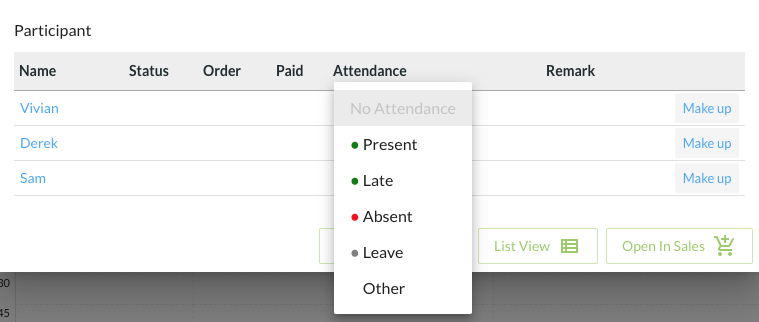
Collecting attendance sheets at the end of the day no longer works once some lessons go online or off-site. In SchoolTracs, teachers mark each student present, absent, late or leave on a laptop or mobile the moment the lesson starts, and every record is stored centrally. The payoff is immediate: when parents call to query a lesson schedule, any admin staff member can pull up the student's record and answer on the spot, and admin can follow up on absences with parents right away instead of discovering them days later.
How do teachers mark attendance on mobile?
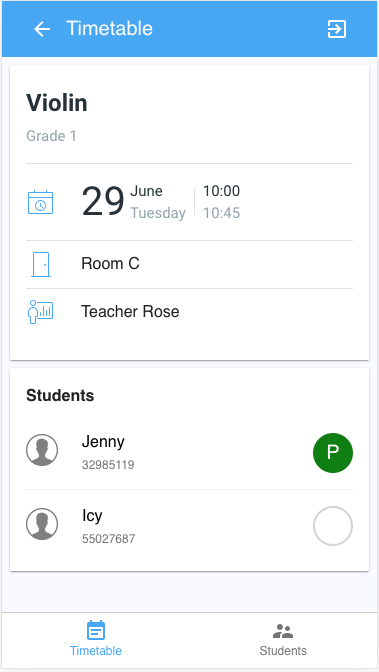
Teachers don't need to download any app. Through a mobile web browser they can browse their own schedule, take attendance and search contacts anywhere, anytime — which is exactly what teachers of outdoor courses such as football lessons need. Three things happen in that browser:
- Check the schedule anytime: teachers log in and see their own lessons, and if a lesson's date or time changes they are notified instantly.
- Take attendance handily: teachers see every student attending their courses — including students making up from other lessons and students with approved leave — and the system syncs each attendance status automatically. No more reprinting attendance sheets every time the schedule changes.
- Follow up consistently: if a student has not arrived, staff follow the centre's approved contact procedure and record the outcome.
Barcode and QR self-service check-in: an optional add-on
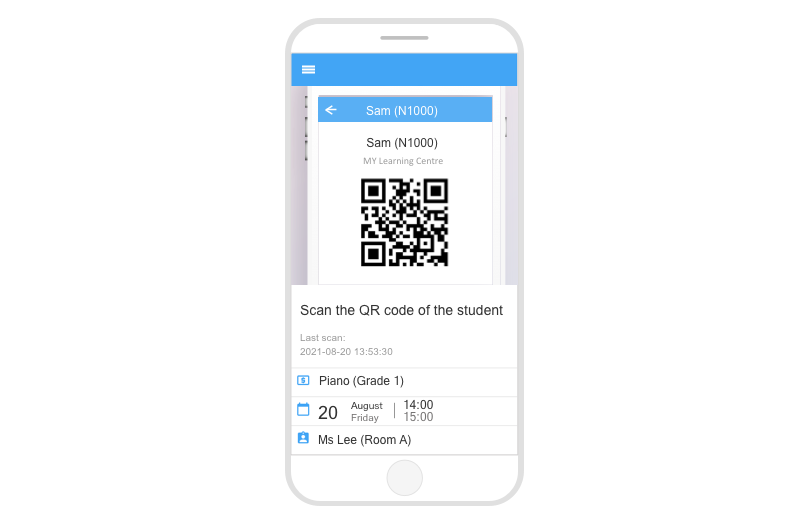
Teachers can confirm attendance statuses in the timetable as a lesson starts. For busy front desks that want an additional self-service layer at the door, SchoolTracs also supports scan-based check-in: print a barcode label for a handbook or student card, or let students show a QR code in the mobile app. Staff scan either one with a mobile web browser — no dedicated scanner hardware required — and SchoolTracs marks the attendance automatically, including the check-out.
- An optional layer on top of timetable marking, not a replacement for it — use it if your front desk wants a self-service check-in flow, skip it if teacher marking already covers your centre.
- Both check-in and check-out are captured automatically from the scan.
- Parents get an instant notification when their child checks in or out, adding a safety reassurance that paper sheets can never provide.
How do you find absences that were never made up?
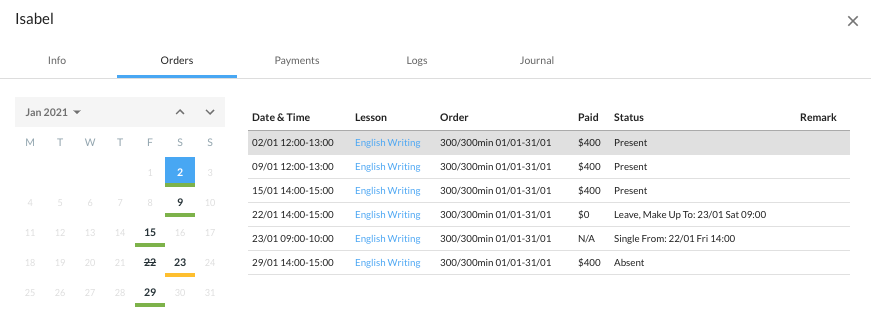
Marking absences is only half the job — the other half is making sure each absence either becomes a make-up lesson or is consciously written off. The enrollment details report shows every student who was absent but has not yet been rescheduled, giving you a clear picture of the lessons your centre still owes. Review this list regularly and act on it — for example by arranging an online class in lieu — so owed lessons never accumulate into a dispute at renewal time.
How do you schedule catch-up lessons effectively?
Rescheduling in SchoolTracs keeps the new booking linked to the original lesson:
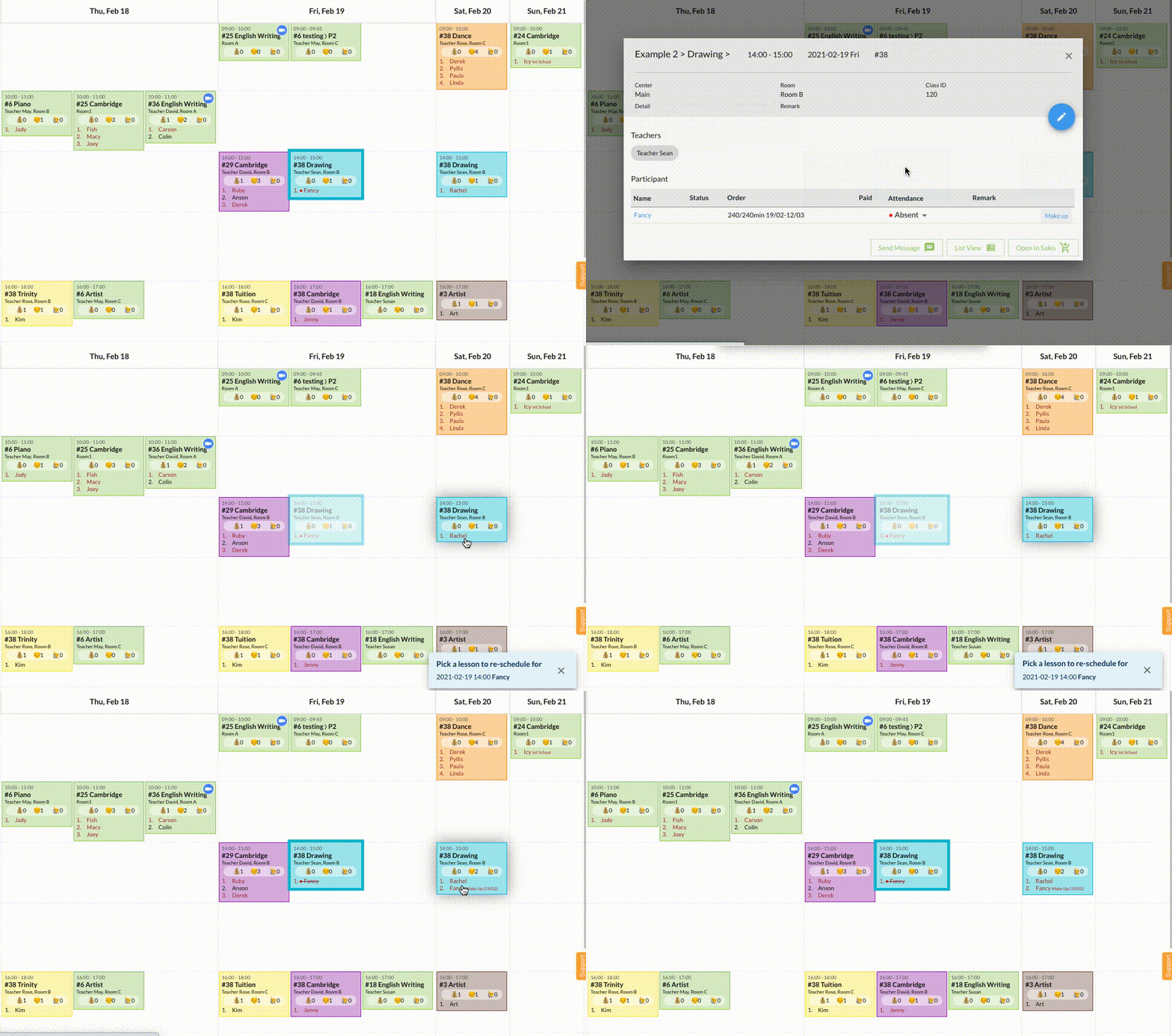
- Click the makeup button on the absent student's record.
- Select a target time slot on the timetable — the student is added to the new slot, and the original date of the catch-up lesson is recorded with it.
- The student's name remains on the original lesson but crossed out, so anyone glancing at the timetable can see who was rescheduled and from where.
That crossed-out design is the catch-up rule that keeps everyone honest: absences are always visible on the timetable until they are resolved, so nothing slips through. And because per-visit and per-lesson billing deduct from attendance records, accurate marking also keeps invoices right — see how attendance connects to fees in our billing models guide.
A simple attendance workflow to adopt
- In class: teachers confirm present / absent / late / leave from their mobile browser as the lesson starts, with make-up students and approved leaves already shown. This is the default for every lesson.
- At the door (optional): centres that want a self-service layer add barcode or QR check-in; parents are notified instantly either way.
- Same day: admin follows up on absences by phone or message while the records are fresh.
- Weekly: run the enrollment details report, reschedule owed lessons with the makeup button, and check that no crossed-out names are left unresolved.
Frequently asked questions
How can teachers take attendance without paper sheets?
Teachers log in through a mobile web browser — no app download needed — see every student in their class including make-ups and approved leaves, and mark present, absent, late or leave. Statuses sync to SchoolTracs automatically.
How does barcode or QR-code check-in work?
For centres that want a self-service option at the door, staff can print a barcode label per student or let students show a QR code in the mobile app; scanning either one with a mobile web browser marks the student's attendance automatically and sends parents an instant notification. It's an optional add-on alongside timetable marking, not a replacement for it.
How do I find students who were absent but never got a make-up lesson?
The enrollment details report lists students who are absent but not yet rescheduled, giving you a clear picture of lessons still owed so you can follow up before they accumulate.
How do I schedule a catch-up lesson?
Click the makeup button, pick a target time slot on the timetable, and the student is added to it with the original lesson date recorded. The student's name stays crossed out on the original lesson so the reschedule is visible at a glance.
How should a centre follow up when a student does not arrive?
Use the centre's approved contact procedure, confirm the correct family contact details and record the outcome alongside the attendance follow-up.
From mobile marking in the timetable to crossed-out make-up reminders and optional barcode check-in, SchoolTracs keeps attendance accurate, visible to parents, and connected to your billing. Apply for a free trial and retire the paper attendance sheet for good.