


Online lessons are easy to teach and painful to administer. Many education centres provide Zoom or Google Meet classes so students can learn from home flexibly — but behind the scenes, someone has to create every meeting, check the timetable to work out who should receive the link, send it to the right students and teachers, and then do it all again every time a lesson is rescheduled. If you use Microsoft Teams to share materials, students who enrol or drop a course have to be added or removed from Teams one by one.
The fix is not another spreadsheet — it is making your timetable the single source of truth. SchoolTracs integrates with Zoom, Microsoft Teams and Google Meet, so timetable changes can flow into the video-lesson workflow. This guide leads with Zoom and also covers Google Meet and Microsoft Teams for centres already standardised on Google Workspace or Microsoft 365. One constraint worth planning around: each Zoom account maps to one branch, so multi-branch centres need a Zoom account per branch rather than one shared login.
Why is managing online lessons manually such a time sink?
Every online class involves three moving pieces: the meeting itself, the student roster, and the notifications. Handled manually, each piece breaks in a predictable way:
- Meetings are created outside the timetable, so admins have to cross-check two systems to see which classes are online.
- Rosters drift out of date — a student who rescheduled last week still has the old link, and a new enrolee has none.
- Notifications depend on someone remembering to message the teacher and every student after each change.
When the timetable drives all three automatically, that entire category of admin work disappears.
How do I run Zoom classes from the timetable?
Start here if you're choosing one platform: to manage face-to-face and Zoom classes together, SchoolTracs integrates Zoom into the timetable itself. You create Zoom classes directly on the SchoolTracs timetable, and you can see at a glance which classes are Zoom classes and which are in-person. Teachers view their relevant classes and get the Zoom class URL and password straight from the timetable — no admin needs to create Zoom meetings separately and send them to teachers one by one.
Once you create or change a Zoom schedule on the timetable, Zoom syncs the meeting information automatically. Rescheduling a lesson in SchoolTracs is enough; the Zoom side follows.
How does the Google Meet integration keep classes and rosters in sync?
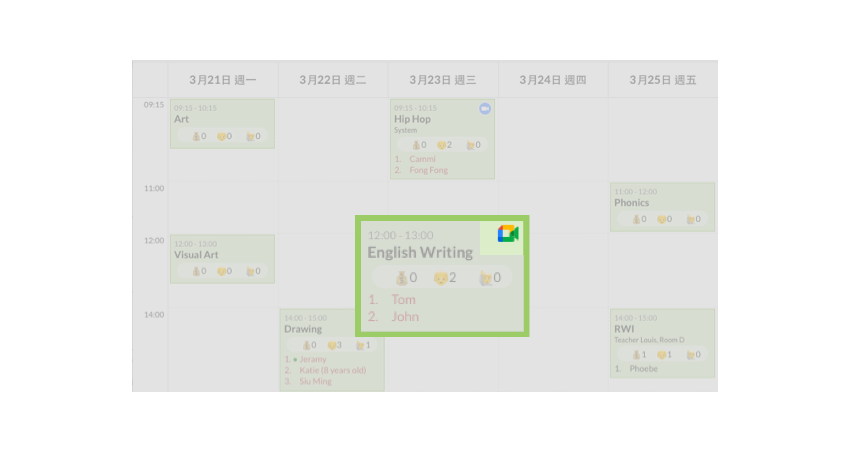
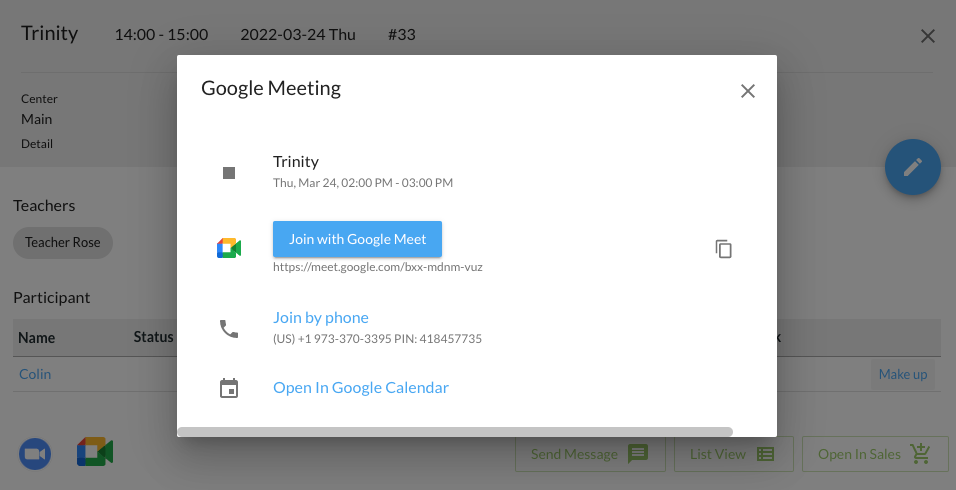
If you host online classes in Google Meet, creating meetings and notifying everyone is normally the most time-consuming part. With the SchoolTracs Google Meet integration, you create the Google Meet on the timetable directly and the link is shown right there in the timetable. When you add students to a class on the timetable, Google Meet syncs the participants in the meeting, and all students in the class receive email invitations automatically.
Rescheduling is handled the same way: when students reschedule or drop classes, the Google Meet is updated accordingly. There is no separate participant list to maintain — the timetable is the participant list.
How do teachers stay informed without admin chasing them?
Once a Google Meet is created on the timetable, teachers can easily see when they have online classes and pick up the joining information themselves. When students are added to or dropped from their classes, teachers receive an email notification automatically. Admins no longer need to notify teachers every time the course schedule changes — the system does the follow-up.
What about sharing materials with Microsoft Teams?
Some education centres use Microsoft Teams to share teaching materials with students. Normally, that means creating each team in Teams by hand and then adding or deleting students one by one as enrolments change. With the SchoolTracs Teams integration, you sync the SchoolTracs timetable to Microsoft Teams in one click: when you create a new class in the timetable, Microsoft Teams automatically creates a Team for it, and the membership follows your enrolment data as students join or drop.
That makes it easy to send materials to exactly the right group of students for every class, with no roster maintenance in Teams itself.
Which platform should my centre use?
Because SchoolTracs supports all three, the choice comes down to what your teachers and families already use:
- Zoom — the most familiar option for live lessons; best if parents already know it and you want simple URL-and-password joining.
- Google Meet — ideal if your centre runs on Google Workspace; students get calendar-style email invitations and participant lists update themselves.
- Microsoft Teams — strongest when material sharing matters as much as the live lesson, since every class gets its own Team with files and chat.
Whichever you pick — or if you mix them across courses — the workflow is the same: schedule in SchoolTracs, and the video platform, rosters and notifications follow automatically. You can also combine online scheduling with the rest of your admin, such as class scheduling and rescheduling workflows.
What does a good online-lesson workflow look like in practice?
Once the integrations are connected, the day-to-day routine for a hybrid centre becomes short and repeatable:
- When scheduling a course: create the class on the SchoolTracs timetable and mark it as an online class — the Zoom meeting, Google Meet link or Team is created at the same time.
- When a student enrols: add them to the class on the timetable. Their invitation, Meet participation or Teams membership follows automatically.
- When a lesson moves: reschedule it on the timetable. The meeting details update and the affected students and teacher are informed without a separate announcement.
- When a student requests a make-up: move them between sessions on the timetable and let the participant sync handle the rest.
The common thread is that nobody edits the video platform directly. The moment staff start creating meetings or rosters inside Zoom, Meet or Teams by hand, the two systems drift apart and you're back to cross-checking. Train the team on one rule — "if it's not on the timetable, it doesn't exist" — and the integrations keep everything else consistent, including for mixed courses where some sessions are in-person and some are online.
Running online lessons shouldn't mean an extra hour of link management per day. With Zoom, Teams and Google Meet driven from one timetable, admins stop copying links, teachers stop asking where the meeting is, and students always land in the right class. Apply for a free trial of SchoolTracs to see the integrations working on your own timetable.
Frequently asked questions
Can I create Zoom classes directly from my tuition centre timetable?
Yes. With the SchoolTracs Zoom integration you create Zoom classes on the timetable directly, see at a glance which classes are online, and teachers get the Zoom URL and password from the timetable itself — no one has to send links out manually.
How does the Google Meet integration handle rescheduling?
When you create a Google Meet on the SchoolTracs timetable, the link appears in the timetable and students receive email invitations. When students enrol, reschedule or drop a class, the Meet participant list updates automatically and teachers are notified by email.
What does the Microsoft Teams integration do?
SchoolTracs syncs your timetable to Microsoft Teams in one click. When you create a new class in the timetable, a Team is created automatically, and as students enrol or drop the membership stays in sync — useful for sharing teaching materials with each class group.
Do teachers need to be notified manually when an online class changes?
No. Teachers can see their online classes and joining details on the timetable, and when students are added to or dropped from a class they receive an email notification automatically, so admins don't need to message them about every schedule change.