



If you run a tuition centre, the class schedule is where every operational problem eventually shows up. A parent calls asking whether Thursday's class has a seat left, and the answer lives in a spreadsheet only one admin can safely edit. A part-time teacher changes her availability, and nobody updates the master file until a student turns up to a class with no teacher. Two admins book the same room for the same hour. Multiply this by dozens of courses, part-time tutors, and rooms, and "just keep the Excel updated" stops being a plan.
The fix is not more discipline with spreadsheets. It is moving to a single, shared timetable that checks availability for you, updates everyone instantly, and shows the operational context — capacity, attendance, payment — right on each time slot. This guide walks through how to set that up step by step, using SchoolTracs as the working example.
Why do spreadsheets break down for class scheduling?
A spreadsheet timetable has three structural problems. First, it only lives in one place: administrators, teachers, and sales staff cannot all work on it at once, so answering a simple query about remaining seats means finding the person who owns the file. Second, it cannot warn you about conflicts: nothing stops you from booking a teacher who is on leave or assigning two classes to the same room. Third, it knows nothing about the rest of your operation: attendance, payments, and make-up lessons all live in other files, so cross-checking is manual.
A purpose-built timetable solves all three. In SchoolTracs, administrators, teachers, and sales all work on the same schedule, any time, anywhere. Admins can view the whole centre's schedule while teachers filter to see just their own lessons — daily routines like answering enrollment queries or checking a teaching timetable no longer depend on one person and one file.
Step 1: Schedule against teacher and room availability, not memory
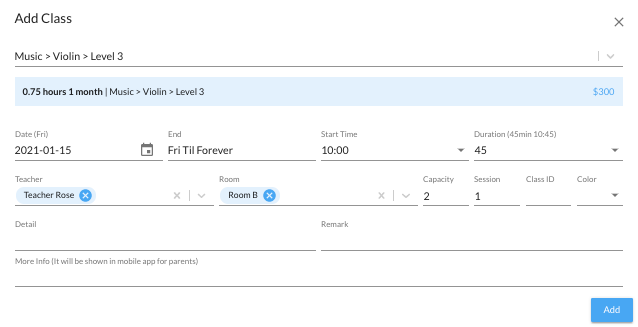
When you create a lesson, you should be looking at real availability, not guessing. The SchoolTracs lesson planner gives you a quick view of each teacher's available time slots for any day, week, or month. If you try to schedule a lesson for a teacher who is not available, the system reminds you automatically.
The same applies to rooms. When you assign a room, SchoolTracs warns you if it is unavailable, so you stop checking room availability by hand and make full use of every teaching room you have.
Step 2: Set up rosters for full-time and part-time teachers
Many tuition centres rely heavily on part-time tutors whose schedules differ from day to day and who take personal leave. Matching every course against every teacher's roster by hand is where most double-bookings come from.
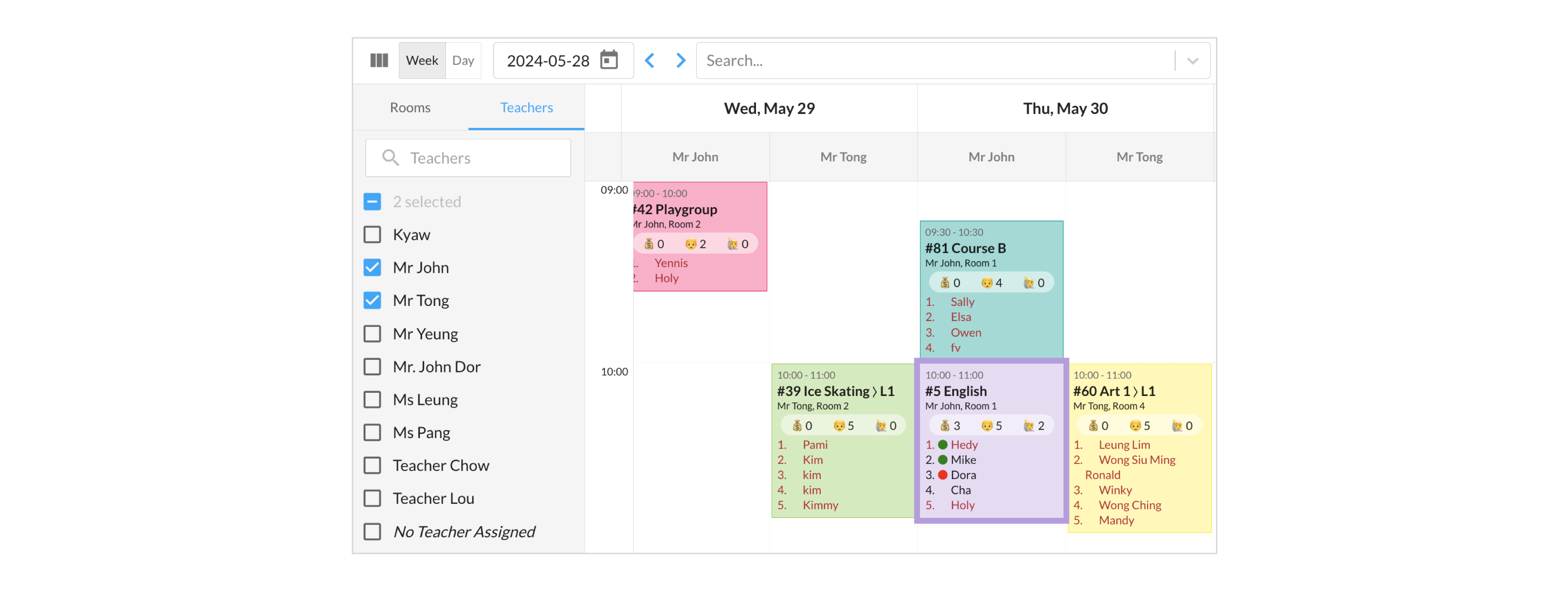
The answer is to store rosters inside the timetable itself. In SchoolTracs, you can save every staff member's roster and see it directly on the timetable, so bookable and non-bookable time slots are obvious at a glance. You can create roster groups — for example full-time and part-time staff — and apply them to the relevant people; edit the group once and everyone in it updates automatically. When a teacher takes leave, mark the day off in the roster. For part-timers whose availability changes weekly, admins can edit bookable slots week by week so the roster is always current.
With rosters in place, the system alerts you automatically if you assign a course to an off-duty teacher, if the same teacher is assigned two courses in one time slot, or if a slot already has a course booked. Conflicts get caught at booking time, not on the day of class. A dedicated Teacher Mode view lays out every teacher's availability directly on the timetable, and course capacity limits set on the room or the class itself trigger their own alert once a slot is full.

Step 3: Make changes with drag-and-drop, not re-typing
Schedules change constantly, and the cost of each change is what makes scheduling feel chaotic. SchoolTracs keeps adjustments lightweight:
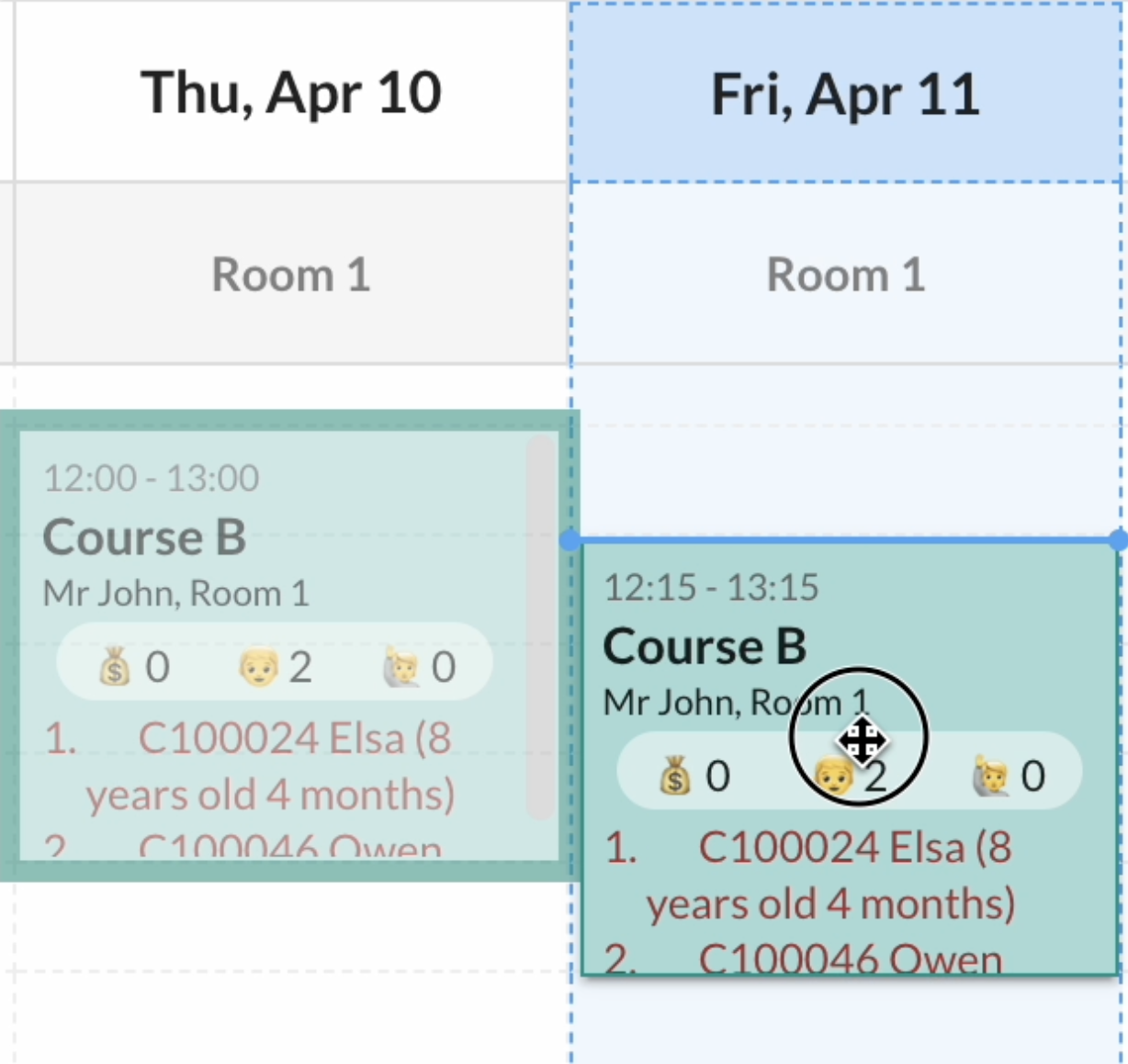
- Drag-and-drop scheduling: move a session by dragging it within the monthly, weekly, or daily view — no manual re-entry, ideal for quick adjustments and last-minute changes.
- One-click class creation: create a class instantly in the slot you want, with the date and time filled in automatically.
- Real-time sync: every update to schedules, attendance, or make-up arrangements syncs instantly across the teacher and student apps, so everyone stays informed without a round of messages.
Step 4: Put capacity, attendance, and payment on the timetable
A timetable that only shows times still forces you into other systems to answer real questions. The SchoolTracs timetable carries the operational detail with each slot:
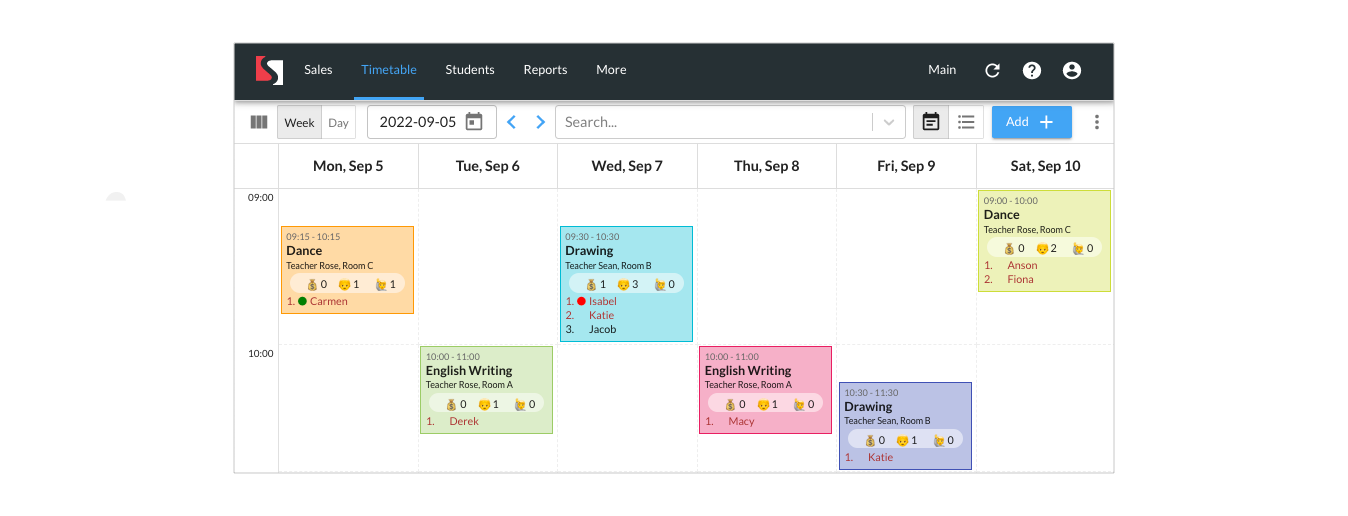
- Course capacity at a glance, so admins can answer enrollment enquiries and fill classes faster.
- Student names on each time slot, showing exactly who is attending which class.
- Color-coded attendance: green and red statuses distinguish present students from those on leave, so follow-up is obvious.
- Payment status in red for students with outstanding fees, prompting the admin to send a payment reminder through the system.
This turns the timetable into a daily control panel. If a teacher marks a student as on leave, the admin can contact the parents and arrange a make-up lesson straight away — see our companion guide on how to handle make-up lessons and rescheduling fairly for that full workflow. Rescheduled lessons are tracked in an orderly way, reminders go out to students automatically, and teachers always see the updated timetable when they log in.
Step 5: Use views and search to find things fast
As the centre grows, finding one student's class or one room's day quickly matters as much as booking correctly. SchoolTracs includes:
- Lesson detail overviews with each student's payment status and attendance record broken down per lesson, for meticulous oversight.
- Student search that retrieves a student's information and class details in a single click, instead of scanning the grid manually.
- Flexible views: switch the timetable between date, teacher, and room views to get an organized perspective of daily operations from whichever angle you need.
How do teachers stay in sync on mobile?
A shared timetable only works if teachers actually check it, and teachers are rarely at a desk. With the SchoolTracs Teacher App, teachers access their schedules on the go, see a clear student list for each class, know immediately which students are present, on leave, or joining as make-up students, and can remark on student performance directly from their phone. Whenever the timetable is rescheduled or attendance is updated, everyone sees the change instantly — admins and teachers collaborate on one centralized timetable without delay.

Putting it together
Scheduling without spreadsheet confusion comes down to five habits: use real teacher and room availability, keep rosters in the timetable, support drag-and-drop changes, show capacity and attendance on each slot, and give teachers a live mobile view. Admin staff need the full web timetable, while teachers need quick access from a phone between lessons.
SchoolTracs connects those two workflows and states that it has 450 subscribers across several education-centre types. For the wider feature set, from invoicing to reporting, see the SchoolTracs fact sheet.
Ready to retire the scheduling spreadsheet? Start a free trial at www.schooltracs.com and run your next week's timetable in SchoolTracs.
Frequently asked questions
What is the best way to schedule classes at a tuition centre?
Use one shared, centralized timetable instead of separate spreadsheets. Every lesson should be booked against teacher availability and room availability, with conflicts flagged automatically. In SchoolTracs, admins, teachers, and sales staff all work on the same live timetable, so a change made at the front desk is instantly visible to everyone.
How do I avoid double-booking teachers or rooms?
Scheduling software should check availability for you. SchoolTracs alerts you automatically if you assign a lesson to a teacher who is off-duty or already teaching in that time slot, and warns you when a room is unavailable, so clashes are caught before they reach students.
How do I manage part-time teachers whose availability changes every week?
Set up rosters. In SchoolTracs you can create roster groups such as full-time and part-time staff, mark days off, and edit bookable time slots week by week, so the timetable always reflects each teacher's real availability when you assign courses.
Can teachers see the class schedule on their phones?
Yes. With the SchoolTracs Teacher App, teachers can check their up-to-date schedule on the go, see the student list for each class, mark attendance, and remark on student performance directly from mobile.
Can the timetable show attendance and payment status too?
In SchoolTracs it can. Each time slot shows the enrolled students with color-coded attendance status, and students with outstanding payments appear in red, so admins can follow up on make-up lessons and payment reminders straight from the timetable.
If some lessons are remote, see the related guide to scheduling Zoom, Teams and Google Meet classes.